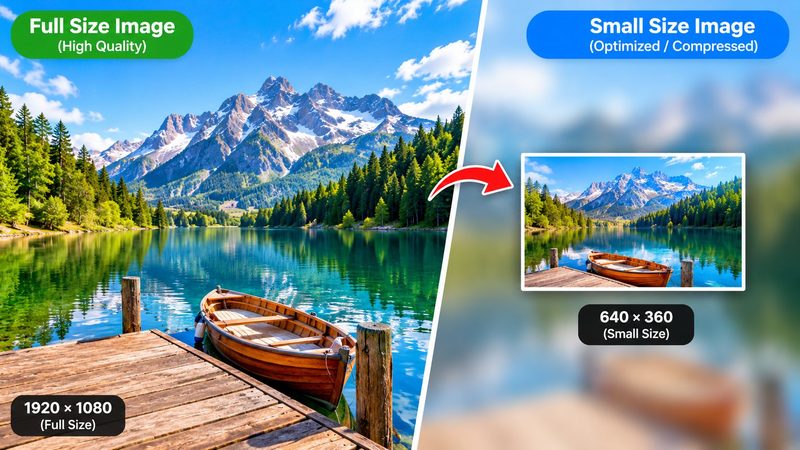
Phone photos are huge — 3 to 5 MB each — and most websites, forms and inboxes are not. When a job portal, exam form or email says "maximum 100 KB", you need to compress the image, not just hope it fits. PixKitTools' Image Compressor shrinks JPG, PNG and WebP photos right in your browser, free and without uploading anything.
How to compress an image in 4 steps
- Open the Image Compressor.
- Upload one photo, or a whole batch at once.
- Pick a target size — 20 KB, 50 KB, 100 KB or 200 KB — or set the quality yourself with the slider.
- Download the smaller file, or the whole batch as a ZIP. Each result shows the size before and after, so you can see exactly how much you saved.
What size should you pick?
- 20 KB — strict exam and government portals that cap uploads very low.
- 50 KB — most job applications, visa forms and ID uploads.
- 100 KB — emails, chats and web uploads where quality still matters.
- 200 KB — social posts and blog images that should stay sharp.
Quality tips
- Start at 70–80% quality. For most photos it looks identical to the original at half the size.
- Photos compress far better as JPG or WebP than as PNG. If you pick a small target size, PNG images are converted to JPG automatically — that is what makes the big saving possible.
- Already-compressed images barely shrink further. If a photo is already tiny, the tool will tell you so instead of damaging it.
- For websites, WebP is the smartest output: same look as JPG at a noticeably smaller size.
Is it really free?
Yes. All 22 PixKitTools tools are free with no signup, no watermark and no daily limit. Because everything runs in your browser, your photos never leave your device — there is nothing to upload and nothing stored on a server.