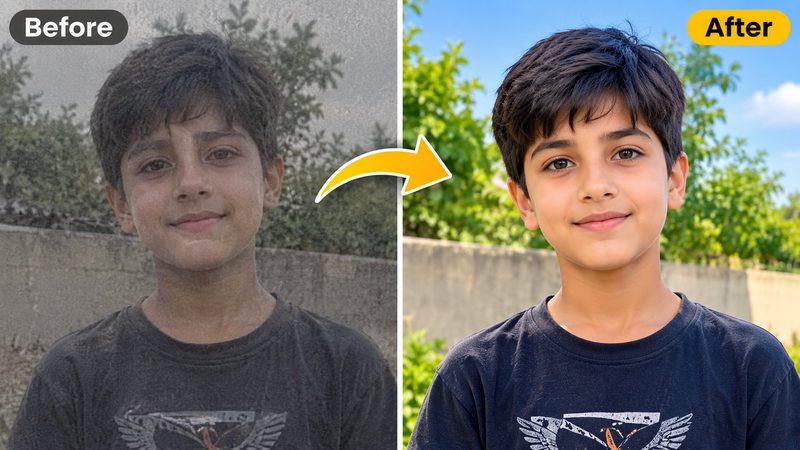
Some photos come out dull, dark or washed out — bad light, an old camera, or a scan of a print. You don't need Photoshop to fix them. PixKitTools' Auto Photo Enhancer improves colour, light and sharpness in one click, free in your browser — and if you want control, manual sliders let you tune every setting live.
Enhance a photo in 3 steps
- Open the Auto Photo Enhancer.
- Upload your photo. Auto mode fixes white balance, contrast, saturation and sharpness at once.
- Download the enhanced photo, or copy it straight to your clipboard.
Manual mode: the 5 sliders
- Brightness — lifts dark photos without blowing out the bright parts.
- Contrast — makes flat photos feel deeper and sharper.
- Saturation — brings dull colours back to life. A little goes a long way.
- Sharpness — crisps up soft edges and fine detail.
- Skin smooth — gently smooths skin while keeping eyes, hair and everything else sharp.
Manual mode starts from your original photo, not from the auto result, so you are always in control. The intensity slider blends the enhancement from 0 to 100% — 60–80% usually looks the most natural.
When enhancement helps — and when it doesn't
Enhancement works best on photos that are dull, dark or slightly flat. It cannot add detail that was never captured: a very blurry or tiny photo will stay blurry, just brighter. And overdoing saturation or sharpness makes skin look unnatural — if faces start looking plastic, pull the intensity back.
Is it really free?
Yes. All 22 PixKitTools tools are free with no signup, no watermark and no daily limit, and your photos never leave your device.