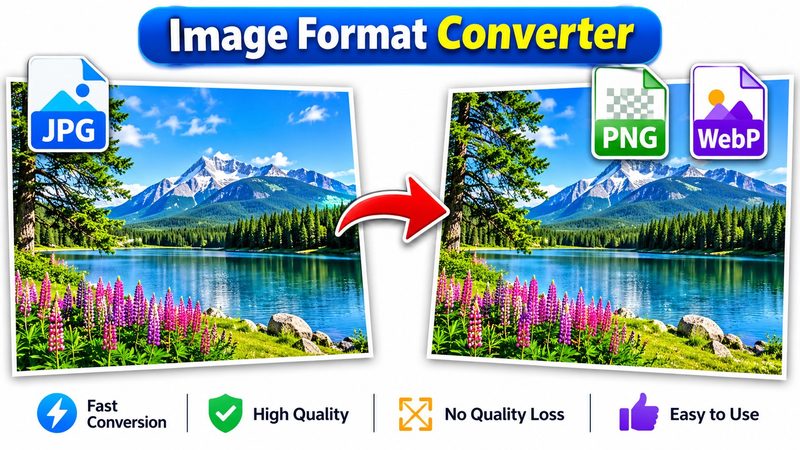
Every image format has a job. JPG is small and universal, PNG keeps sharp edges and transparency, WebP is smaller than both for the web. When a site, app or printer asks for a different format, you don't need new software — PixKitTools' Image Format Converter switches JPG, PNG, WebP and AVIF in your browser, free and in bulk.
JPG vs PNG vs WebP — which one to pick?
- JPG — best for photographs. Small files, works everywhere, but no transparency and every save loses a little quality.
- PNG — best for logos, screenshots and graphics with sharp edges or text. Lossless, supports transparency, but photos become much bigger files.
- WebP — best for websites. About 30% smaller than JPG at the same quality, with transparency support.
- AVIF — even smaller than WebP, but not every old app opens it yet.
Convert in 4 steps
- Open the Image Format Converter.
- Upload one image, or many at once.
- Choose the output format — JPG, PNG, WebP or AVIF — and set the quality for JPG and WebP.
- Download one file, or the whole batch as a ZIP. Everything happens in your browser, so your images are never uploaded.
Three honest notes
- Converting JPG to PNG does not restore quality the JPG already lost. It only stops further loss from that point on.
- A photo saved as PNG is often 3–5 times bigger than the same photo as JPG. Use PNG for graphics, not for photos.
- JPG cannot store transparency. If your PNG has a transparent background and you convert it to JPG, the transparent area becomes white.
Is it really free?
Yes. All 22 PixKitTools tools are free with no signup, no watermark and no daily limit, and your images never leave your device.