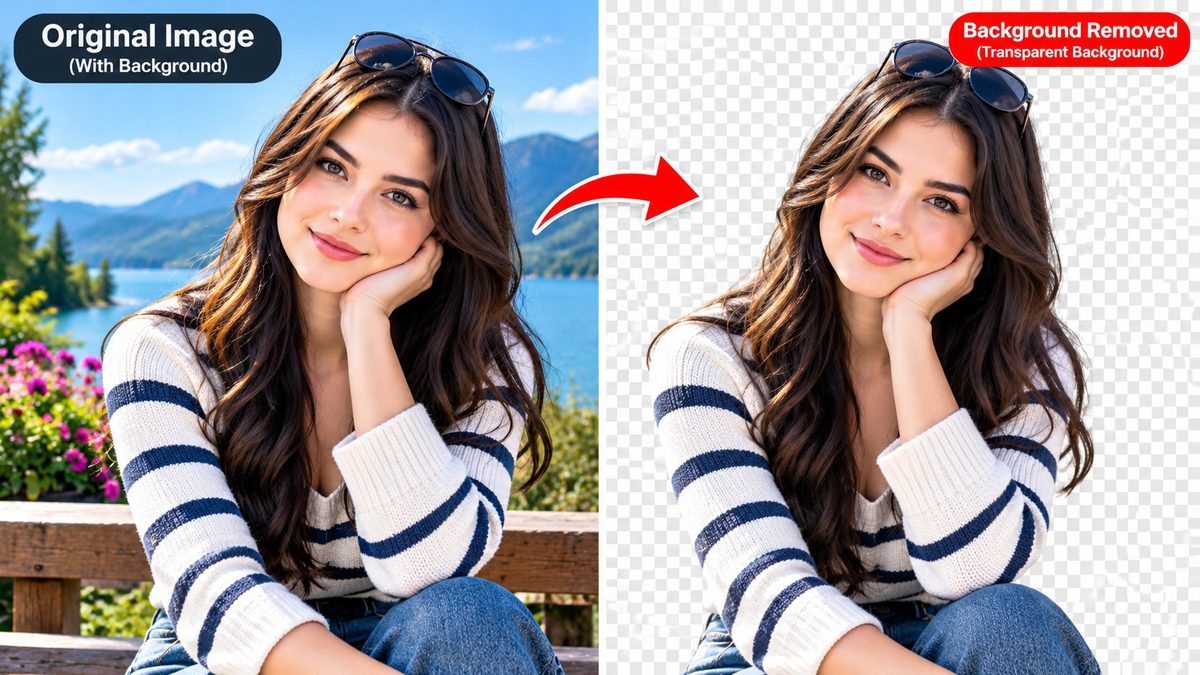
A clean cutout — your subject on a transparent background — is useful everywhere: product photos, YouTube thumbnails, stickers, profile pictures and presentations. It used to need Photoshop or a paid website. PixKitTools' Background Remover does it free, in your browser, with no signup and no upload.
Remove a background in 5 steps
- Open the Background Remover.
- Upload your photo — drag and drop it, or click Choose File. JPG, PNG and WebP work, up to 20 MB.
- Let the AI work. The first run downloads the AI model once (full model about 84 MB; on a slow connection the tool retries automatically with a smaller 42 MB model) and your browser caches it, so later photos are faster. If your network blocks the full AI model, the tool switches automatically to a fast person mode (a small ~6 MB model) that works for photos of people.
- Check the preview on the checkerboard. Smooth edges is on by default and cleans up rough outlines.
- Download the transparent PNG, or copy it straight to your clipboard.
Tips for a clean cutout
- Photos with a plain, uncluttered background cut out best.
- Good light helps — a bright subject against a darker background is easiest for the AI.
- Hair and fur are the hardest edges. If strands look rough, try the Smooth edges option, and accept that no background remover — free or paid — is 100% accurate on fine hair.
- Very busy backgrounds take longer and can leave small leftovers. A tighter crop before removing the background often fixes it.
What to do with a transparent PNG
- Drop it onto a coloured background for a thumbnail or poster.
- Use it as a product photo on a listing — marketplaces prefer clean white backgrounds.
- Turn it into a sticker for chats, or paste it into slides and documents.
Is it really free?
Yes. All 22 PixKitTools tools are free with no signup, no watermark and no daily limit. Because everything runs in your browser, your photos never leave your device — there is nothing to upload and nothing stored on a server.