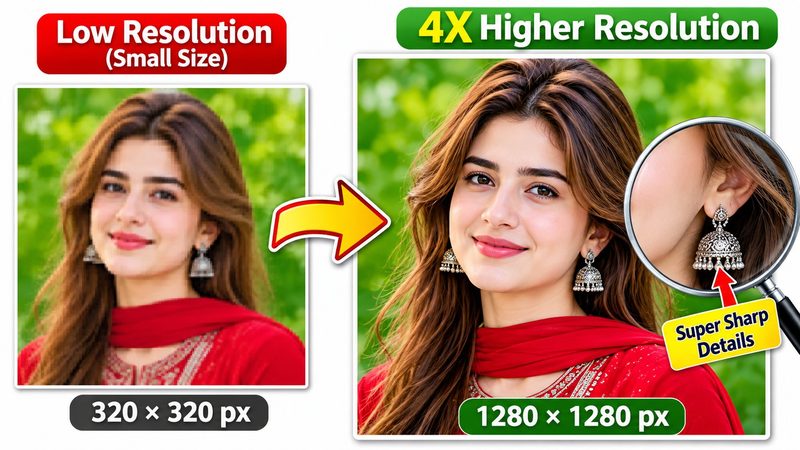
A small photo — an old profile picture, a tiny logo, a thumbnail saved years ago — looks fine at its own size and terrible the moment you enlarge it. PixKitTools' Image Upscaler makes small photos 2x or 4x bigger with detail sharpening, free in your browser.
Upscale in 3 steps
- Open the Image Upscaler.
- Upload your photo and choose 2x or 4x.
- Download the bigger photo. No signup, no watermark, and your photo is never uploaded.
An honest note about upscaling
PixKitTools' upscaler is a browser enlarge plus detail sharpening — it is not AI super-resolution. That matters: it makes your photo bigger and crisper, but it cannot invent detail that was never in the original. A 320-pixel face will not gain new eyelashes at 1280 pixels. What it does well is clean, sharp enlargement without the blur and blockiness of a plain resize — and it is instant, free and private, while true AI upscalers need a server and usually a paid plan.
When to use 2x vs 4x
- 2x — the safe choice for most photos. Double the size, minimal softness, good for printing small or posting larger.
- 4x — for very small images: old icons, tiny logos, thumbnails and profile pictures that need to be usable at a normal size.
Tips for the best result
- Start from the largest original you have. Upscaling a 100-pixel image 4x will always look softer than upscaling a 400-pixel one 2x.
- Logos, icons and graphics with sharp edges upscale best. Photos with fine texture — hair, grass, fabric — soften first.
- If the result looks too smooth, that is normal: the sharpener works on edges, not on texture.
Is it really free?
Yes. All 22 PixKitTools tools are free with no signup, no watermark and no daily limit, and everything runs in your browser.